
Knowledge Base
Sometimes it becomes necessary to cancel a reservation. Some situations where this might arise include:
To cancel a reservation, navigate to the Reservation Detail page for the reservation. You can do this by going to All Sales and entering the customer's name or their confirmation ID.
When you get to the detail page, scroll down to the Reservation Info box. If the reservation is able to be cancelled, you will see golden "cog" dropdown in the upper right of the box. From here, select Cancel Reservation.
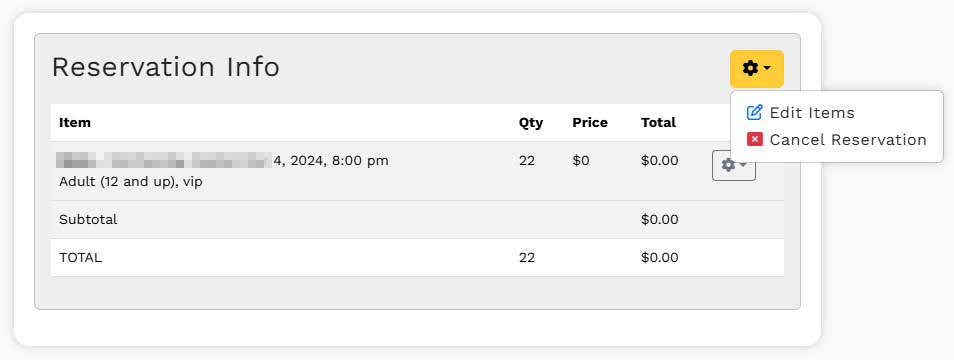
Then click Yes, Cancel Reservation if you want to complete the cancellation.
Depending on your level of access to the system, you may not be able to perform cancellations at certain points in the billing or payment process. If this becomes an issue, please consult a manager to perform the cancellation.
Note: Cancelling a reservation DOES NOT automatically issue refunds for previous payments. If the reservation has been billed to a reseller invoice, it is not automatically removed or credited. Please issue refunds or make any invoice corrections BEFORE cancelling the reservation. Consult your accounting manager if you have questions about this.